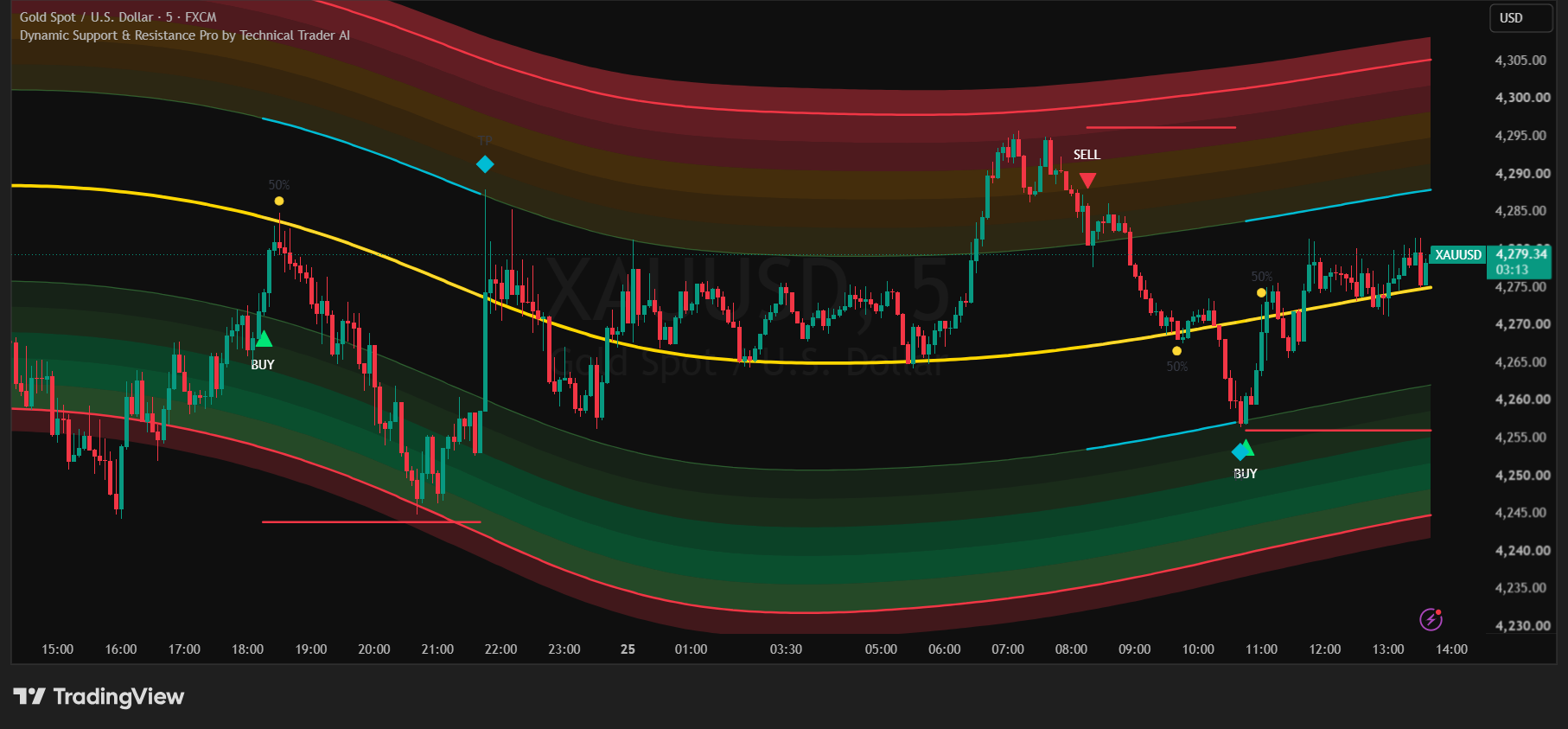
Dynamic Support & Resistance Pro identifies qualifying bounce and rejection opportunities around adaptive support and resistance extremes. When its proprietary conditions align, the chart plots a Buy or Sell signal together with its stop-loss and target levels.
Explore different markets and timeframes with all three premium indicators free for three days—no credit card required.
MarketsGold, US100 & indices
Timeframes15 min / 5 min
ConfirmationPlotted Buy / Sell signal
Trade planSL · 50% · 100% targets
Product overview
The Pro indicator evaluates every chart using proprietary volatility and price-action logic. Its internal calculations and qualification rules are intentionally not disclosed; the finished signal and trade-planning levels are displayed directly on the chart.
You do not need to interpret or reconstruct the hidden conditions. Wait for the indicator to plot a Buy or Sell signal after the candle closes, then use the displayed levels to assess the setup against your own risk plan.
Bar-replay demonstration
Watch Dynamic Support & Resistance Pro in action
See how the plotted Buy and Sell signals, stop-loss and target markers develop on a historical TradingView chart. The proprietary calculations remain inside the indicator.
Historical bar-replay demonstration—not live performance or a guarantee of future results.
How to use the indicator
See the signals on real forex charts
These historical five-minute examples show the finished signals and trade-planning levels produced by the indicator. They demonstrate the display—not the proprietary conditions used to generate it.
01
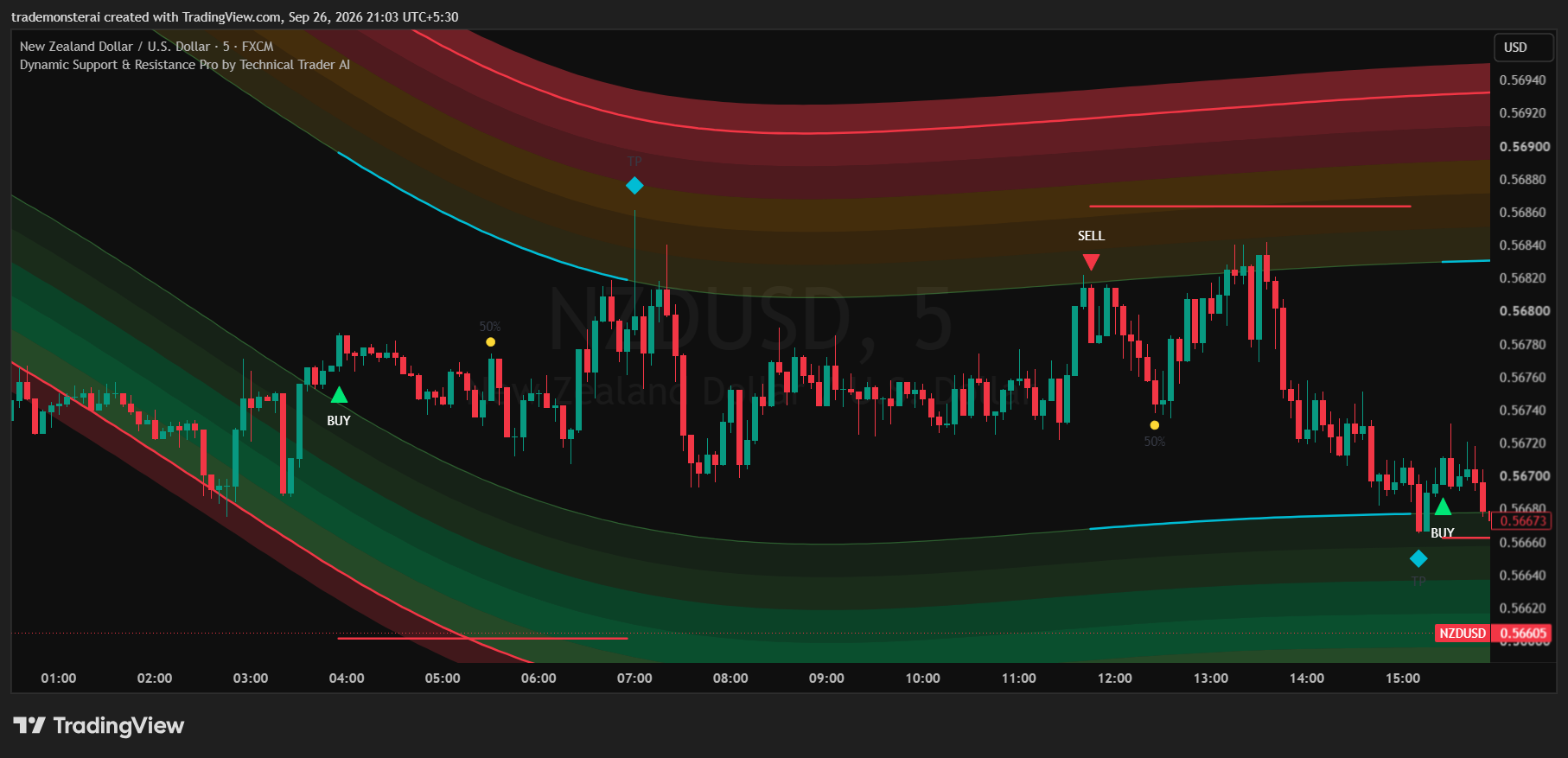
NZDUSD · 5 minute chart
Buy and Sell signals across changing price conditions
The indicator plots qualifying Buy and Sell signals directly on the chart. Each setup is accompanied by its visible stop-loss and target markers, allowing the trader to evaluate the completed signal without reconstructing the underlying logic.
Signal direction
Green markers identify Buy signals and red markers identify Sell signals.
Trade planning
The chart plots the applicable stop-loss, 50% target and 100% target markers.
Confirmation
Evaluate a displayed signal only after its candle has closed.
02
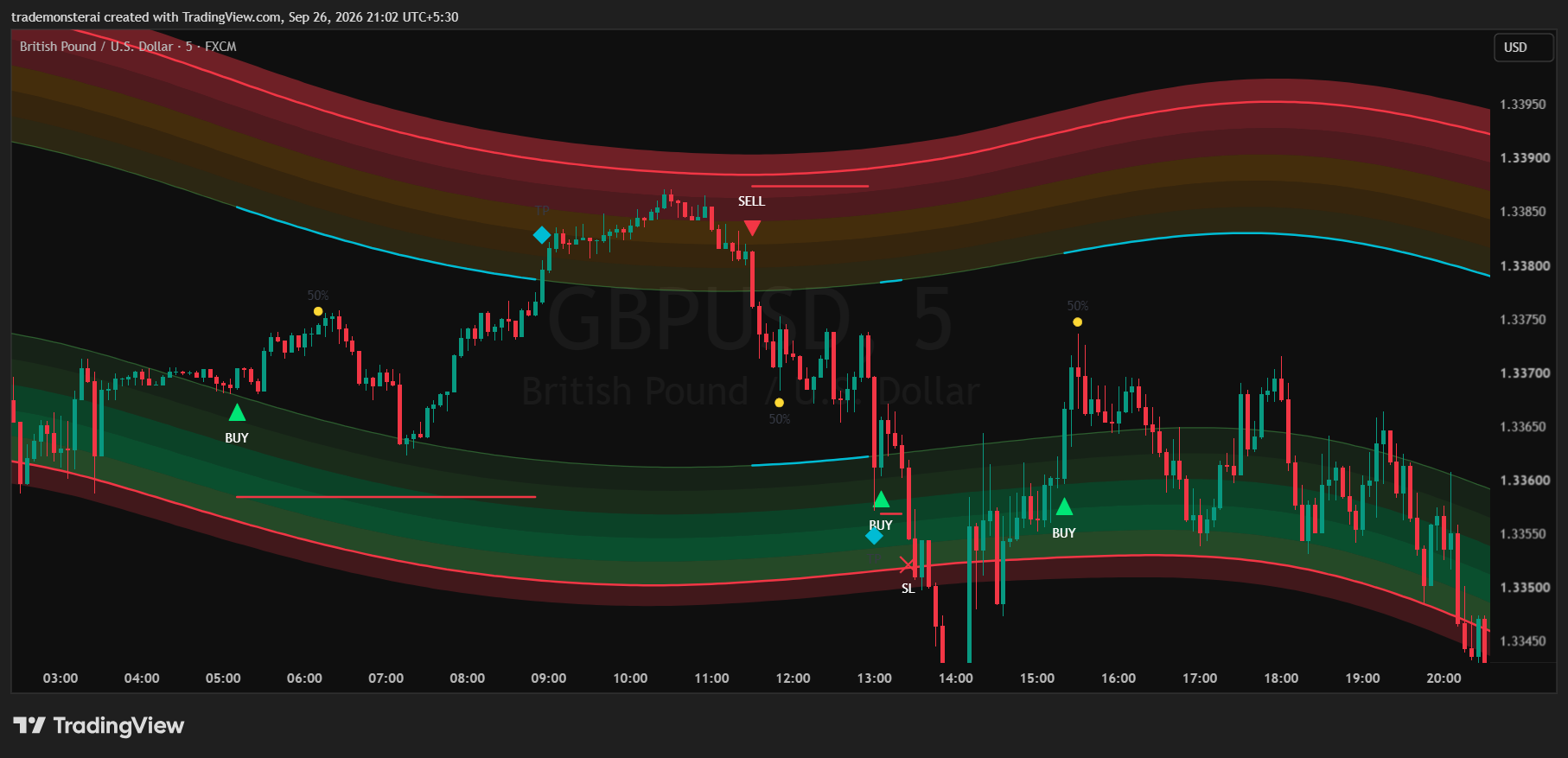
GBPUSD · 5 minute chart
Multiple bounce and rejection opportunities in one session
This GBPUSD example shows how signals may appear at different support and resistance locations during the session. A coloured area alone is not an entry; traders wait for the proprietary Buy or Sell signal to appear.
No manual formula
The indicator evaluates its proprietary conditions automatically.
Signal first
No plotted Buy or Sell signal means there is no standard setup.
Risk control
Review the displayed stop and targets before deciding whether the setup fits your risk plan.
Wait for the plotted signal
The indicator performs the qualification automatically.
A Buy or Sell signal appears only when the proprietary conditions align.
Evaluate the signal after the candle has fully closed.
No displayed signal means there is no standard setup from the indicator.
Follow the plotted trade plan
The Pro chart displays the key levels for every qualifying setup.
The red horizontal line marks the plotted stop-loss.
The yellow marker shows the 50% target.
The diamond marker shows the 100% target.
Test before subscribing
Let the indicator do the analysis while you decide whether the product suits you.
The display adapts automatically to changing instrument volatility.
Test the recommended 15-minute and 5-minute starting points.
Use the three-day demo before purchasing a subscription.
TradingView access guide
From signup to your first signal
Dynamic Support & Resistance is delivered through TradingView’s invite-only indicators. Follow these steps after requesting the demo or completing your subscription.
01
Share your TradingView ID
Enter your exact TradingView username in the demo or subscription form so we can activate access for the correct account.
02
Wait for activation email
Our team will enable your access and send an email confirmation. In TradingView, open Indicators and then Invite-only scripts to find the indicator.
03
Add and favourite it
Open Dynamic Support & Resistance on your chart and add it to favourites for quicker access.
04
Create a signal alert
Use the indicator’s available TradingView alert condition and select Once Per Bar Close where available. Treat the alert as a prompt to verify the completed signal on the chart.
First-load access issue
If TradingView shows ‘No access’ immediately after activation, close TradingView completely and reopen it. The first load can retain an older cached access state.
Frequently asked questions
Everything you need before starting
What is the indicator’s main purpose?
Dynamic Support & Resistance Pro identifies qualifying bounce and rejection opportunities around adaptive support and resistance areas. When its proprietary conditions align, it plots a Buy or Sell signal together with the trade-planning levels.
Which markets does it support?
It can be used across markets including XAUUSD, US100, forex, other indices and stocks. Use the three-day demo to test which market and timeframe best suit your trading process.
Which timeframes are recommended?
Use 15 minutes as the recommended starting point for markets that trade close to 24 hours, such as XAUUSD, US100 and forex. For stock markets with shorter operating hours, 5 minutes may be more suitable. Test both during the demo.
What do the coloured areas show?
The adaptive areas provide visual context for current price location as volatility changes. Their exact calculations and weighting are proprietary. A touch of an area is not, by itself, an entry.
When is an entry confirmed?
A standard setup is present only when the Pro indicator plots a Buy or Sell signal after the candle closes. The underlying qualification and filtering conditions are proprietary and are evaluated automatically.
Does this indicator provide trend-following entries?
No. This product is designed for qualifying bounce and rejection opportunities around support and resistance extremes. If no Buy or Sell signal appears, there is no standard setup from the indicator.
How should I use alerts?
Use the available TradingView alert condition as a prompt to review the chart. Select Once Per Bar Close where available, then verify that the completed candle displays a Buy or Sell signal before making any decision.
What do the stop-loss and target markers mean?
After a qualifying signal, the red horizontal line displays the planned stop-loss, the yellow marker displays the 50% target and the diamond marker displays the 100% target. The calculations used to place these levels are proprietary.
When should traders avoid taking a trade?
Do not take a standard trade when there is no plotted Buy or Sell signal, while the signal candle is still forming, or simply because price touches a coloured area. Always confirm the completed signal and assess your own risk before entry.
Does the indicator repaint?
No. It does not repaint. Evaluate a signal only after the candle has fully closed.
Do customers need to change any settings?
No routine volatility adjustment is required. The indicator automatically adapts to the selected instrument. Its internal calculations and filters are proprietary; your main choice is the market and timeframe.
What should beginners do first?
Leave the core settings unchanged, wait for plotted signals and use the full three-day demo to test different instruments and timeframes. Subscribe only after confirming that the product suits your trading process.
How do I receive TradingView access?
Submit your exact TradingView username with the demo request or paid subscription. After our team activates access, you will receive an email and can find the indicator under Indicators → Invite-only scripts.
What if TradingView initially says ‘No access’?
Close TradingView completely and reopen it. The first load can retain an older cached permission state immediately after activation.
Are indicator subscriptions refundable?
Use the free three-day demo to confirm the tools suit your process before subscribing. Because the complete indicator suite is available to try first, indicator subscriptions are non-refundable under the Refund & Cancellation Policy.
Choose your access
Try all three premium indicators free for three days.
Technical Trader AI provides software tools for market analysis and automation, not financial advice. Trading involves substantial risk, and no indicator or Expert Advisor guarantees results.